OpenClaw Setup Guide: When AI Actually Does the Work


What if AI Actually Did the Work Instead of Just Talking?
Working as a solopreneur means endless repetitive tasks every day. Checking emails, organizing schedules, setting up meetings, organizing notes... When you ask ChatGPT or Claude, they tell you "do it like this," but ultimately you still have to execute it yourself, right?
But OpenClaw is different. This thing actually does the work.
"THE AI THAT ACTUALLY DOES THINGS"
It organizes your inbox, sends emails, manages your calendar, and even checks you in for flights.
When I first discovered this project, I thought "Yeah, right, just more talk." But after installing and using it myself, it was real. In this article, I'll explain from installation to basic setup as simply as possible, based on my trial-and-error experience.
What is OpenClaw?
OpenClaw is an open-source AI agent framework. Simply put, when you chat with AI through your messenger (except KakaoTalk), that AI accesses your computer and various services to perform tasks directly.
Supported Chat Apps
It supports almost all major messengers:
- WhatsApp - The most widely used messenger
- Telegram - Popular among developers
- Discord - Essential for community managers
- Slack - Work messenger
- Signal - For security-focused users
- iMessage - Apple users
- Microsoft Teams - Enterprise environments
- Matrix - Decentralized messenger
- Nostr - Web3 users
Supported AI Models
You can choose which AI model to use:
| Provider | Models |
|---|---|
| Anthropic | Claude Opus 4.5, Claude Sonnet 4 |
| OpenAI | GPT-4.5, o3, o1-pro |
| Gemini 2.0 Ultra, Gemini 2.0 Pro | |
| xAI | Grok 3 |
| OpenRouter | Various model relay |
| Mistral | Mistral Large 2 |
| DeepSeek | DeepSeek V3 |
I mainly use Claude Sonnet 4, but switch to Opus 4.5 for complex tasks.
What Can It Do?
Here are the useful features from a solopreneur's perspective:
1. Productivity Tool Integration
- Apple Notes - "Summarize yesterday's meeting and save it to notes"
- Notion - "Add this week's to-do list to Notion"
- Obsidian - "Write last month's retrospective"
- Trello - "Create a new card and add the task"
- GitHub - "Create an issue in this repo"
2. Email Automation
- Inbox organization
- Important email summaries
- Draft replies
- Newsletter organization
3. Calendar Management
- Add/modify schedules
- Coordinate meeting times
- Set reminders
4. Smart Home Control
- Philips Hue - Lighting control
- 8Sleep - Smart mattress
- Home Assistant - Comprehensive smart home hub
5. Media Control
- Spotify - "Play my focus playlist"
- Sonos - Speaker control
Why is Mac Mini Sold Out?
Did you know Mac Mini M4 is in a sold-out crisis? It's because of OpenClaw.
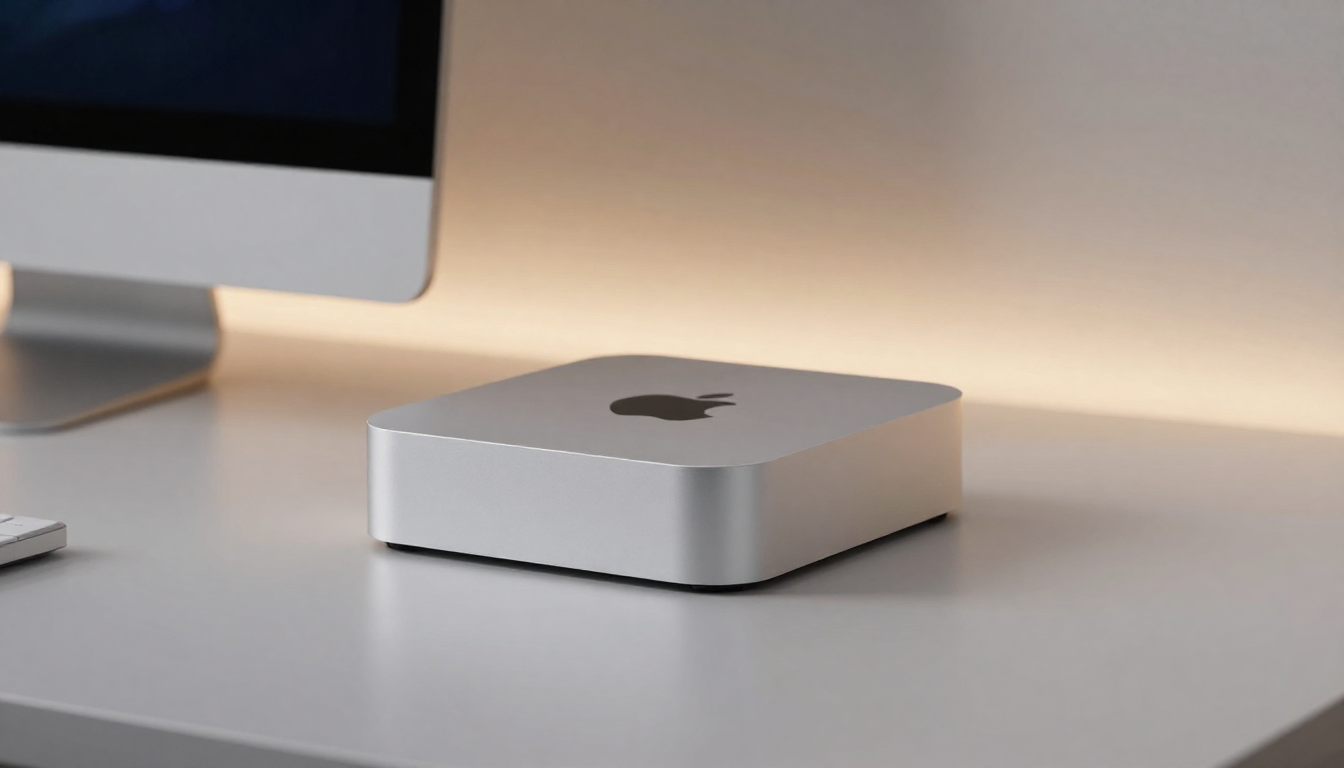
To use OpenClaw properly, you need a computer that's on 24/7. OpenClaw needs to be running all the time so you can send commands via messenger anytime. That's why people started buying Mac Minis as "dedicated AI assistant servers" to keep at home.
Why Mac Mini is Perfect
- Low power - No electricity bill burden even when on 24/7 (around 10W idle)
- Quiet - Almost no fan noise, OK to put in living room
- Compact - Hide it on one side of your desk
- M4 chip performance - Capable of running local AI models
- macOS - The best environment for OpenClaw
Recommended Configurations
| Use Case | Model | Price |
|---|---|---|
| Entry | Mac Mini M4 16GB | $799 |
| Recommended | Mac Mini M4 Pro 24GB | $1,599 |
| Heavy User | Mac Mini M4 Pro 48GB | $2,199 |
Honestly, 16GB is enough. OpenClaw itself isn't heavy. But if you want to run local LLMs (like Ollama) later, I recommend 24GB or more.
Mac Mini + OpenClaw Tips
- Remote access setup: System Settings → Sharing → Enable Remote Login for SSH access anywhere
- Auto start: Add OpenClaw to Login Items for automatic execution after reboot
- UPS connection: Connect a small UPS for power outage protection
- Without monitor: Works fine headless without monitor connection
Send "Tell me today's schedule" via Telegram to my Mac Mini at home and I get an immediate response. It really feels like having an AI assistant.
Installation
Supported Platforms
| Platform | Support |
|---|---|
| macOS | Native support |
| iOS | Mobile app |
| Android | Mobile app |
| Windows | Via WSL2 |
| Linux | Native support |
I'm using it on Mac, so I'll explain based on Mac.
Step 1: Prerequisites
First, what you need:
# Install Homebrew (if not installed)
/bin/bash -c "$(curl -fsSL https://raw.githubusercontent.com/Homebrew/install/HEAD/install.sh)"

# Install Node.js (v18+)
brew install node

# Install Git
brew install git
Step 2: Clone OpenClaw
# Go to your preferred folder
cd ~/Projects

# Clone the repository
git clone https://github.com/openclaw/openclaw.git

# Change directory
cd openclaw
Step 3: Install Dependencies
# Install pnpm (faster than npm)
npm install -g pnpm

# Install dependencies
pnpm install
Step 4: Environment Setup
Copy .env.example to .env:
cp .env.example .env
Then open with an editor and enter the required API keys:
# AI Model API Keys (at least one required)
OPENAI_API_KEY=sk-xxx
ANTHROPIC_API_KEY=sk-ant-xxx
GOOGLE_AI_API_KEY=xxx

# Messenger settings (only the ones you use)
TELEGRAM_BOT_TOKEN=xxx
DISCORD_BOT_TOKEN=xxx
Step 5: Run
# Run in development mode
pnpm dev

# Or build for production and run
pnpm build
pnpm start
When a QR code appears in the terminal, scan it with WhatsApp or Telegram.
Initial Setup Tips
1. Choose AI Model
I recommend starting with Claude Sonnet 4. It's fast and has good context understanding. Switch to Claude Opus 4.5 for complex tasks. (Latest as of February 2026)
2. Permission Settings
Carefully choose which services OpenClaw can access. Start with read-only permissions, then add write permissions as you get comfortable.
3. Learn Commands
Basic commands:
/help - Help
/status - Check current status
/connect [service] - Connect service
/disconnect [service] - Disconnect service
Real Usage Examples
Patterns I use daily:
Morning Routine
"Summarize today's schedule"
It fetches today's schedule from the calendar and organizes it.
Email Processing
"Tell me only the important emails"
It filters out spam and newsletters, summarizing only emails that need replies.
Task Management
"Mark the task I just finished as complete in Notion"
No need to open Notion every time.
Cautions
Security
- Never share your API keys
- Don't commit
.envfile to git - Think twice before connecting services with sensitive data
Cost
- AI API usage fees apply
- Expect $20-50 per month for Claude or GPT-4
- Start with cheaper models and use premium ones only when needed
Stability
- This is an actively developed project
- There may be occasional bugs
- Set important tasks to require confirmation and approval
Conclusion
I've been using OpenClaw for a few weeks, and honestly, my productivity hasn't skyrocketed. But there's definitely a feeling of being freed from annoying repetitive tasks.
Especially email organization and calendar management have become easier. I used to spend 30 minutes every morning checking my inbox, but now I just ask "Anything important?" and I'm done.
For solopreneurs, time is money. It makes sense to reduce repetitive task time with tools like this and focus on what's really important.
If you get stuck during installation, leave a comment. I can help based on my trial-and-error experience.